

What visitors can do
The widget has 30+ adjustments, grouped into:- Content and text: text size, text magnifier, readable font (including a dyslexia-friendly font), line height, letter spacing, word spacing, highlighted headings and links
- Color and contrast: contrast modes, color contrast, saturation, invert colors, blue-light filter, and color-blindness filters
- Navigation and focus: keyboard navigation, larger cursor, reading aids, pause animations, mute sounds, and hide media
- Screen reader: read page content aloud
Privacy
The widget does not set cookies. A visitor’s choices are saved only in their own browser (local storage), so the settings stay when they move to another page or come back later. Visitors can undo all their changes with the Reset button in the widget.Open the widget settings
In the dashboard, open FIND → Widget. The page has tabs along the top. Make your changes, then click Save Settings. Your website shows the new settings on the next page load.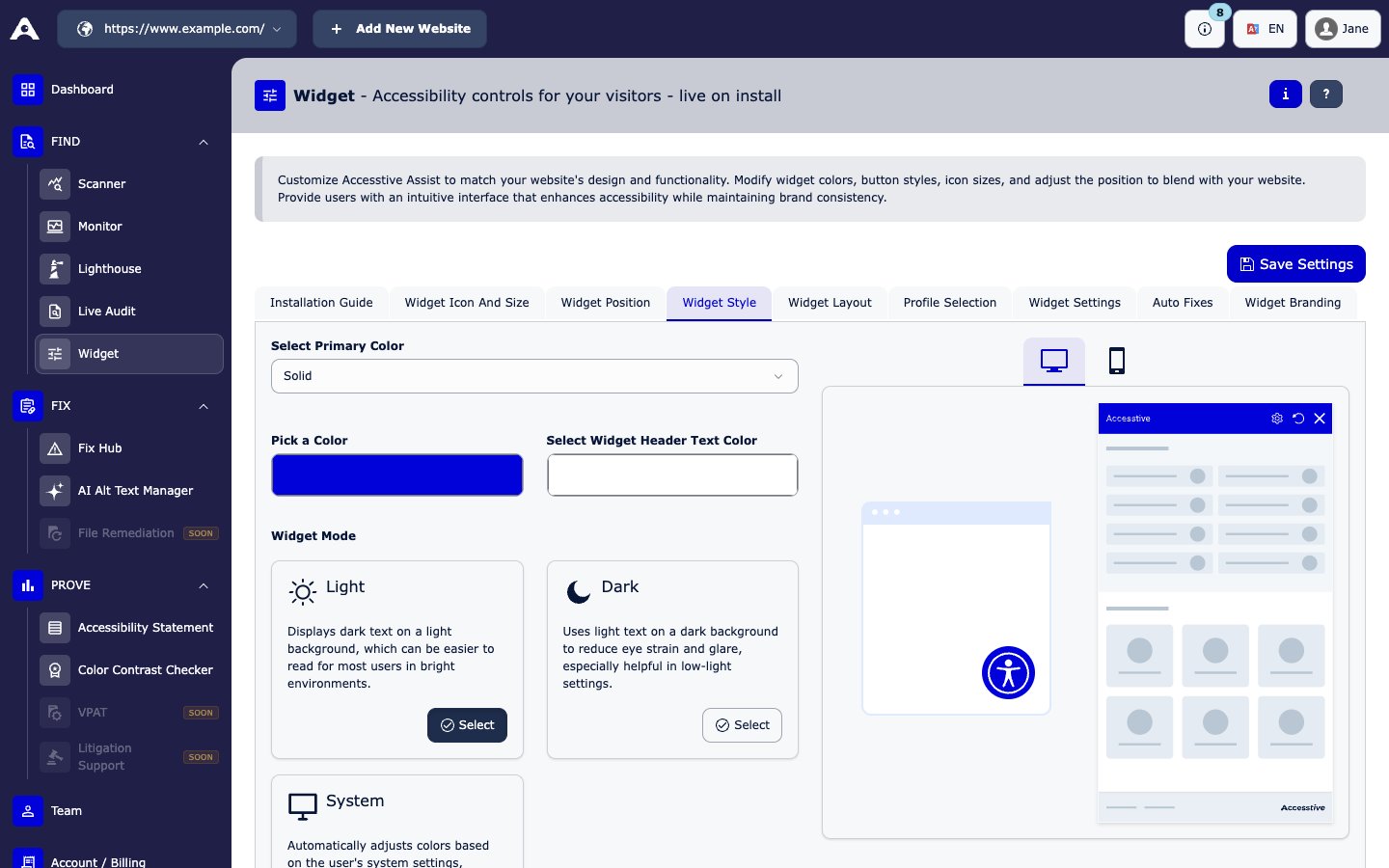
FIND → Widget → Widget Style
Below these sections you can also turn single widget features on or off.
Widget languages
The widget is available in English, German, Danish, Dutch, French, Italian, Polish, Portuguese, Russian, Spanish, Swedish, and Turkish. Choose a fixed language in Widget Settings, or keep Default to follow your website’s language.Auto Fixes
When you turn on Auto Fixes and save, the widget repairs common accessibility problems in your page code each time a page loads. It can add:- Image descriptions where they are missing or empty (it does not replace existing descriptions)
- Names for unnamed graphics, links, and buttons
- Form labels and required-field markers
- Names for unlabeled fieldsets
- Table headers
- Hidden decorative icons inside named controls
- Heading markup for text that looks like a heading
- Titles for iframes
- Names for video and audio
- An “opens in a new window” hint for links that open a new tab
- Keyboard access for clickable areas
- The page language, when it is missing
Auto Fixes only change what the visitor’s browser shows. They do not change your website’s source code. Fix the source too, using Fix Hub.
Install the widget
Open FIND → Widget → Installation Guide and click Copy. Then paste the code just before the closing</body> tag of your website template:
data-token value connects the widget to your website and your settings.
Other ways to install:
- Plugin or app: WordPress, Shopify, and other platforms. See Getting started.
- Google Tag Manager: a Custom HTML tag on All Pages. See Getting started.
- Self-hosting: Accesstive provides a package for your own server. Contact support from the Installation Guide.
Check the installation
- Open your website and look for the Accesstive button.
- Click it and try a profile or a feature.
- If the button does not show, check the browser console for errors and make sure the code is on every page.
The
www and non-www versions of your domain count as the same website. You do not need to set up the widget twice.Page limits
Each plan covers the widget on a set number of pages on your website. See Plans and billing. If your website grows past this limit, the Accesstive team contacts you about upgrading.Learn more
- Accessibility Statement: show a link to your statement inside the widget
- Product page: Accessibility Widget