

Add a teammate
1
Open Team
Click Team in the left menu. The page shows your team list and Available User Creation, which is how many more people you can add.
2
Add the person
Click Add New User. Enter their Name and Email.
3
Choose their access
Under Access, tick the modules this person may use, for example Fix Hub only for a developer. Click Save.
4
They get an email
You see “The Editor has been successfully created, and the necessary credentials will be provided to the recipient via email.” Your teammate receives their login details by email.
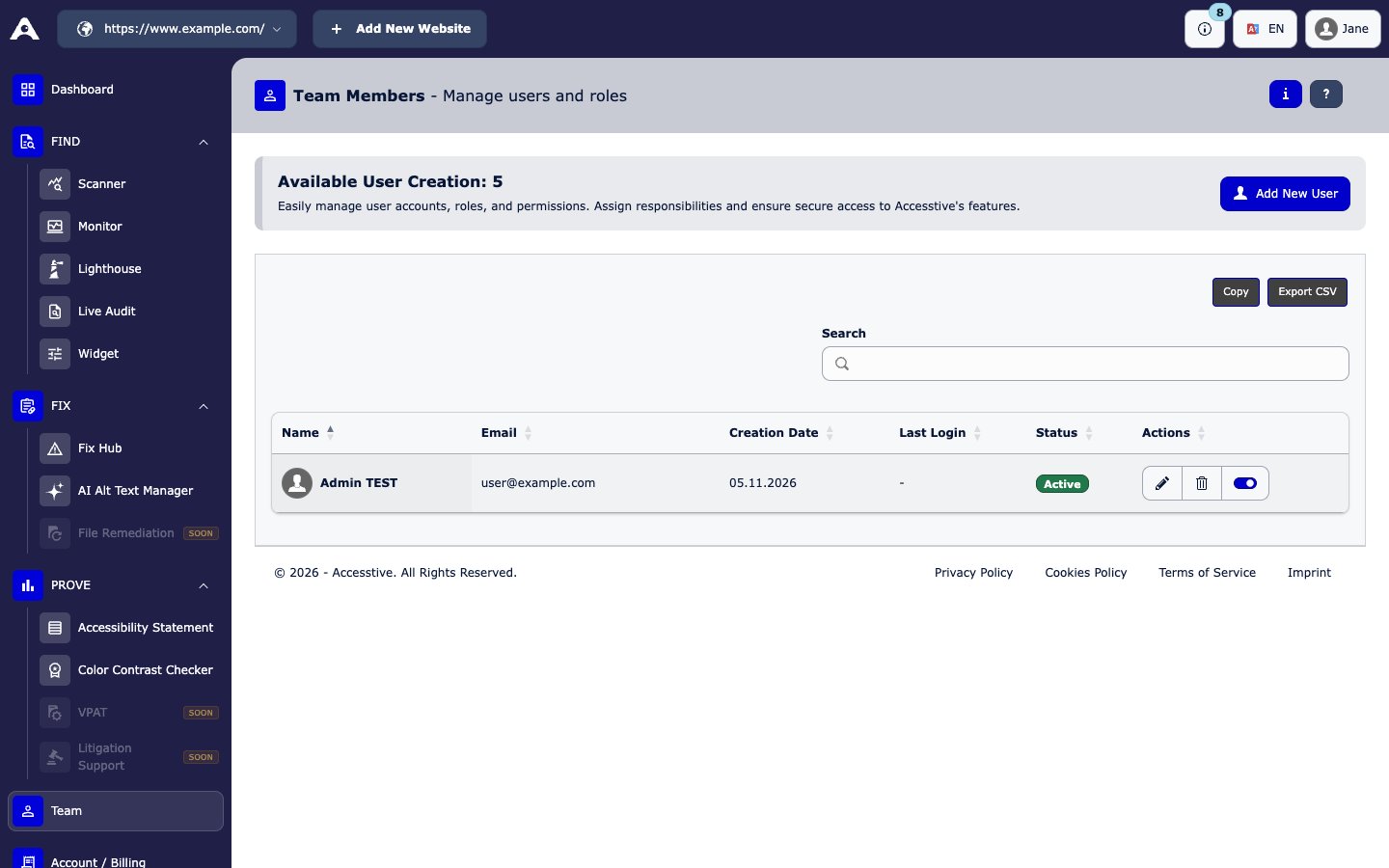
Team
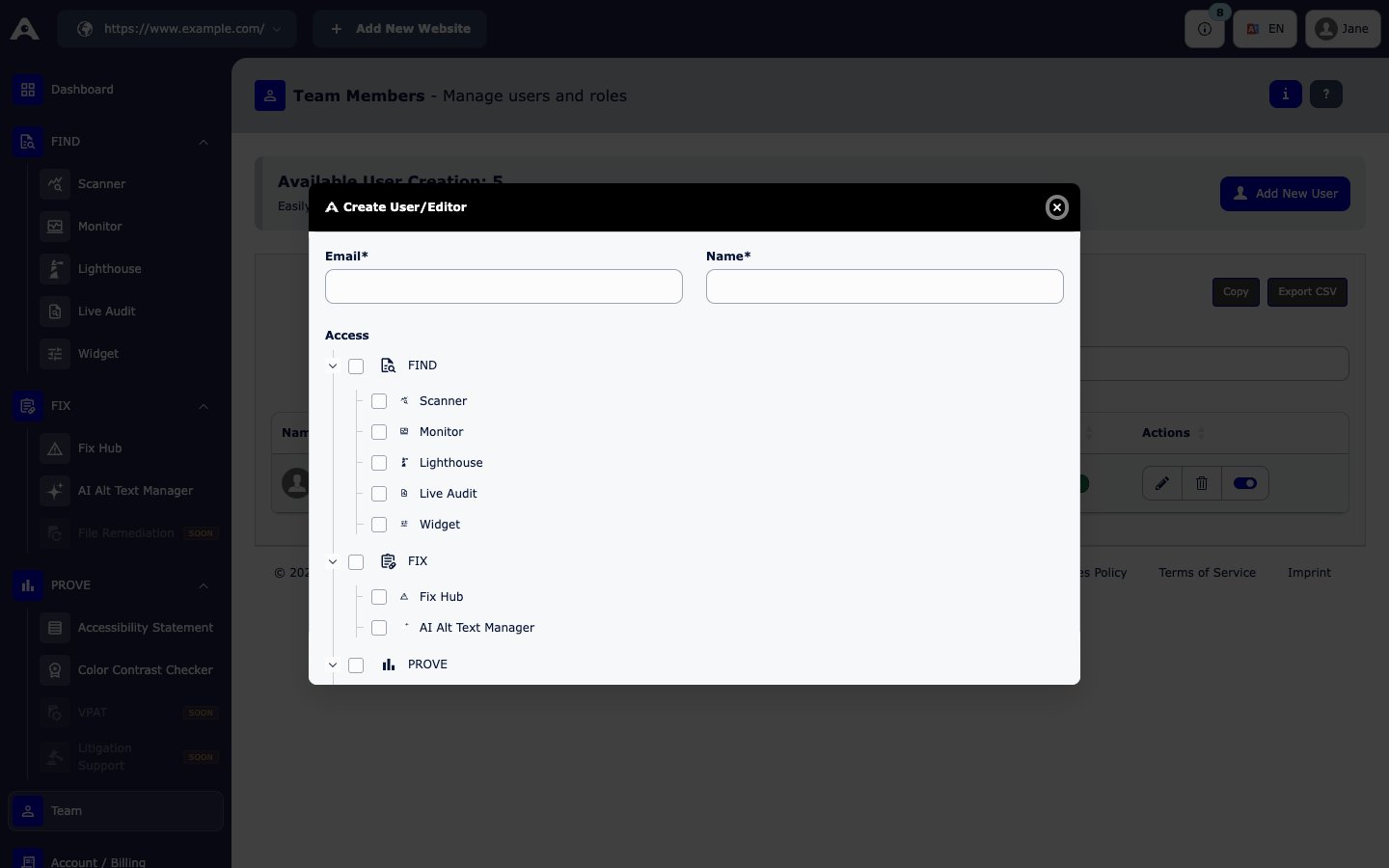
Add New User
Manage teammates
The team list shows each person’s Name, Email, Status, Creation Date, and Last Login. Under Actions you can:- Edit a teammate’s name or access
- Switch a teammate between Active and InActive to pause their login without deleting them
- Remove a teammate. This frees up a place on your plan.
How many teammates you can add
If you reach the limit, you see Upgrade required: “To add more users, upgrade your plan.” See Plans and billing.