

Both tools check pages against WCAG rules at levels A, AA, and AAA. Issues found go to Fix Hub.
Check a page with the Scanner
1
Open the Scanner
Go to FIND → Scanner.
2
Choose a page
In the page tree, click your website (the top entry) or one of its pages.
3
Run the check
Click Run Accessibility Check. A progress bar shows while the page is being checked. This can take a minute or more for large pages.
4
Read the results
When the check is done, the page shows:
- Issue counts by severity: Critical, Serious, Moderate, Minor, and Human review
- Accessibility Health Score: one score that sums up the result
- Rating Based on WCAG Level: how well the page meets levels A, AA, and AAA
- Category Issues Chart: which kinds of problems you have most
- Critical Issues List and Serious Issues List: the most urgent problems to fix first
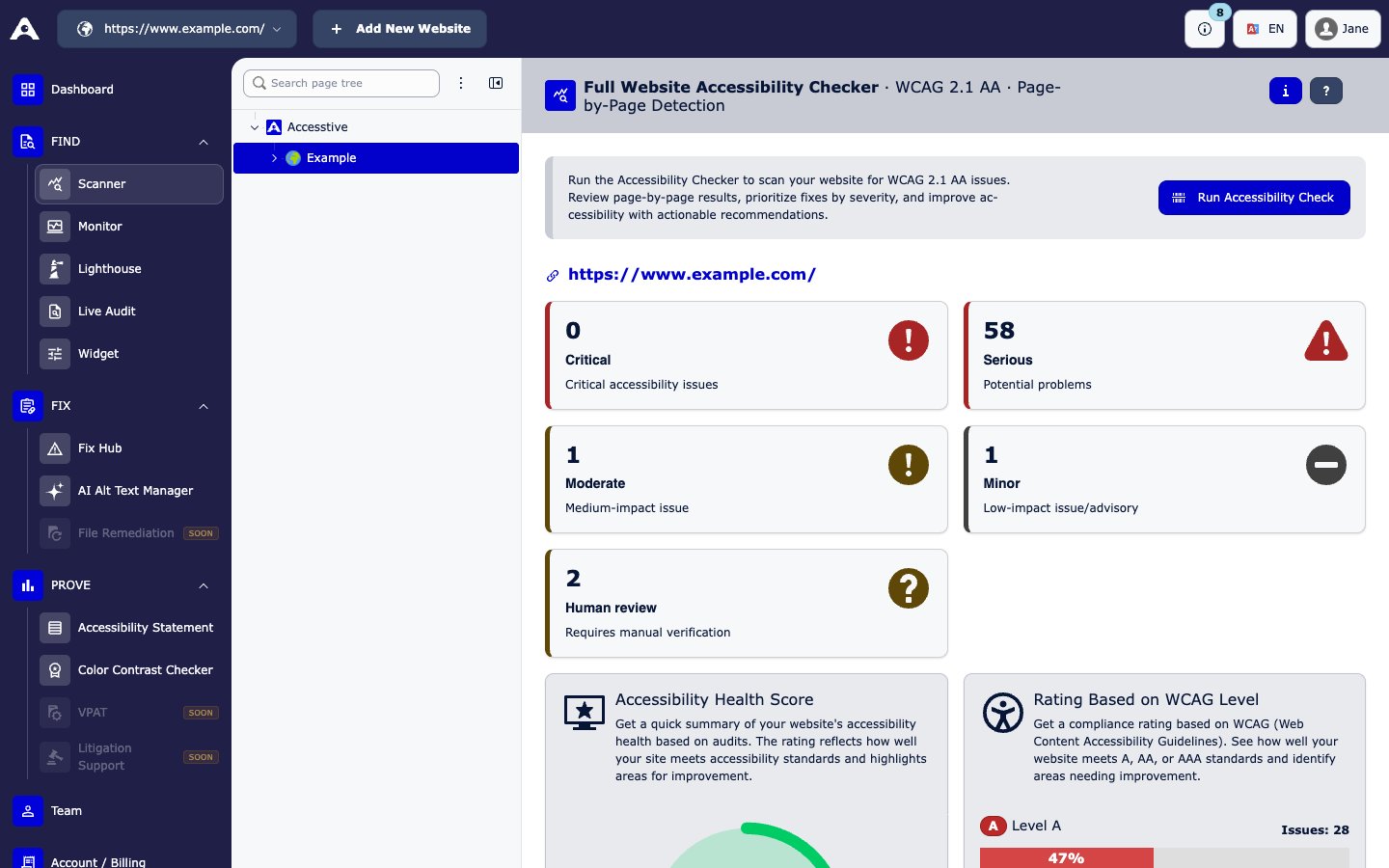
FIND → Scanner
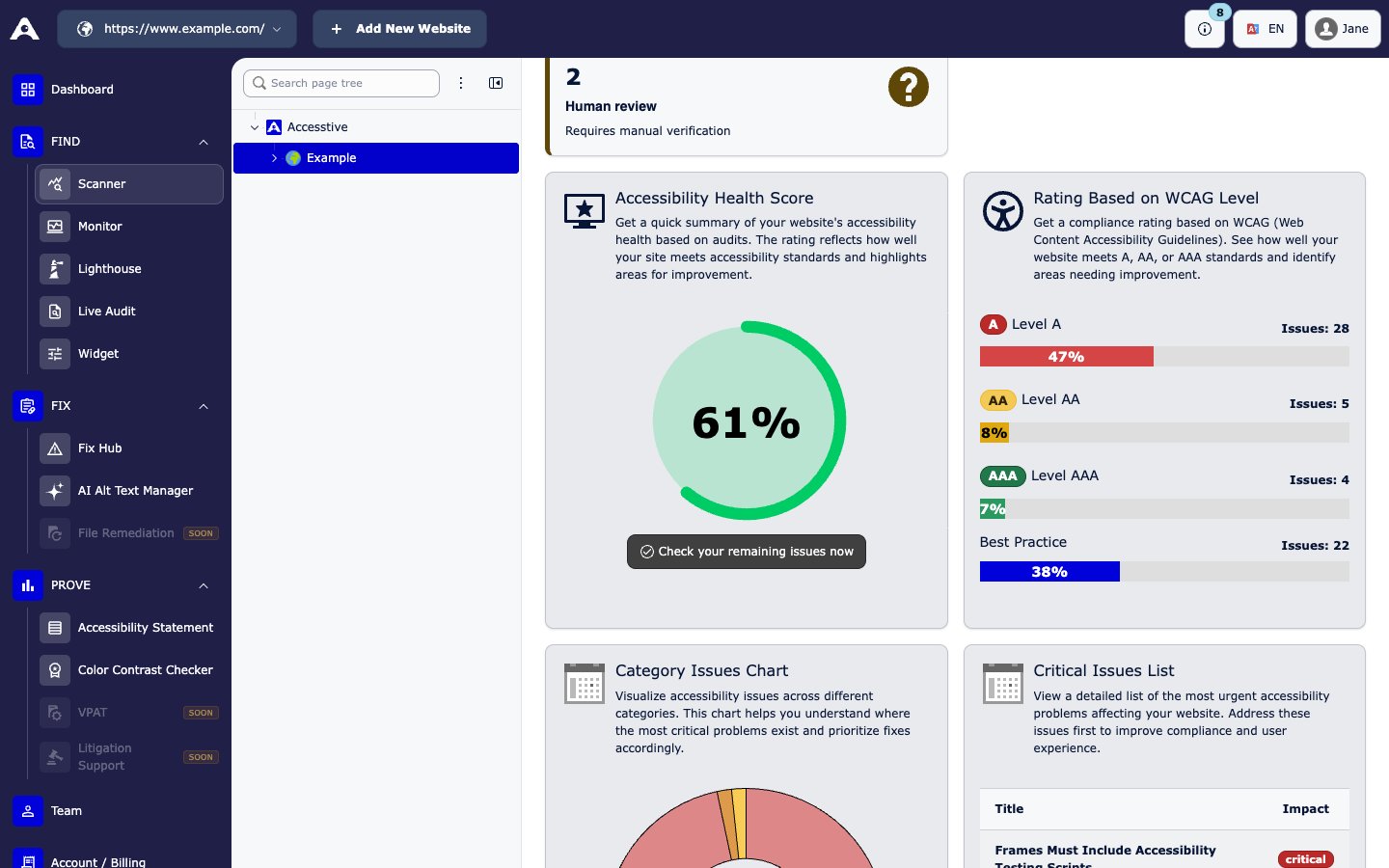
Scanner scores further down the page
Keep pages under watch with the Monitor
Monitored pages are checked again automatically on a regular schedule (daily on current plans). This helps you catch new issues when content or code changes.Add pages
1
Open the Monitor
Go to FIND → Monitor. You see the list of your website’s pages and how many pages you monitor, for example Monitored Pages: 10 / 100. Use the URL filter to find a page.
2
Add new pages
Click Add Page. In Add New Pages, either:
- enter one page address (and turn on Consider all links of the entered URLs to include its subpages), or
- enter the address of your sitemap to add many pages at once.
https://www.example.com/contact. Click Add.3
Start monitoring a page
In the page list, click Start Monitor next to the page. Accesstive checks it and keeps checking it from now on.
4
Open the report
Click View Report next to a monitored page to see its score and issues.
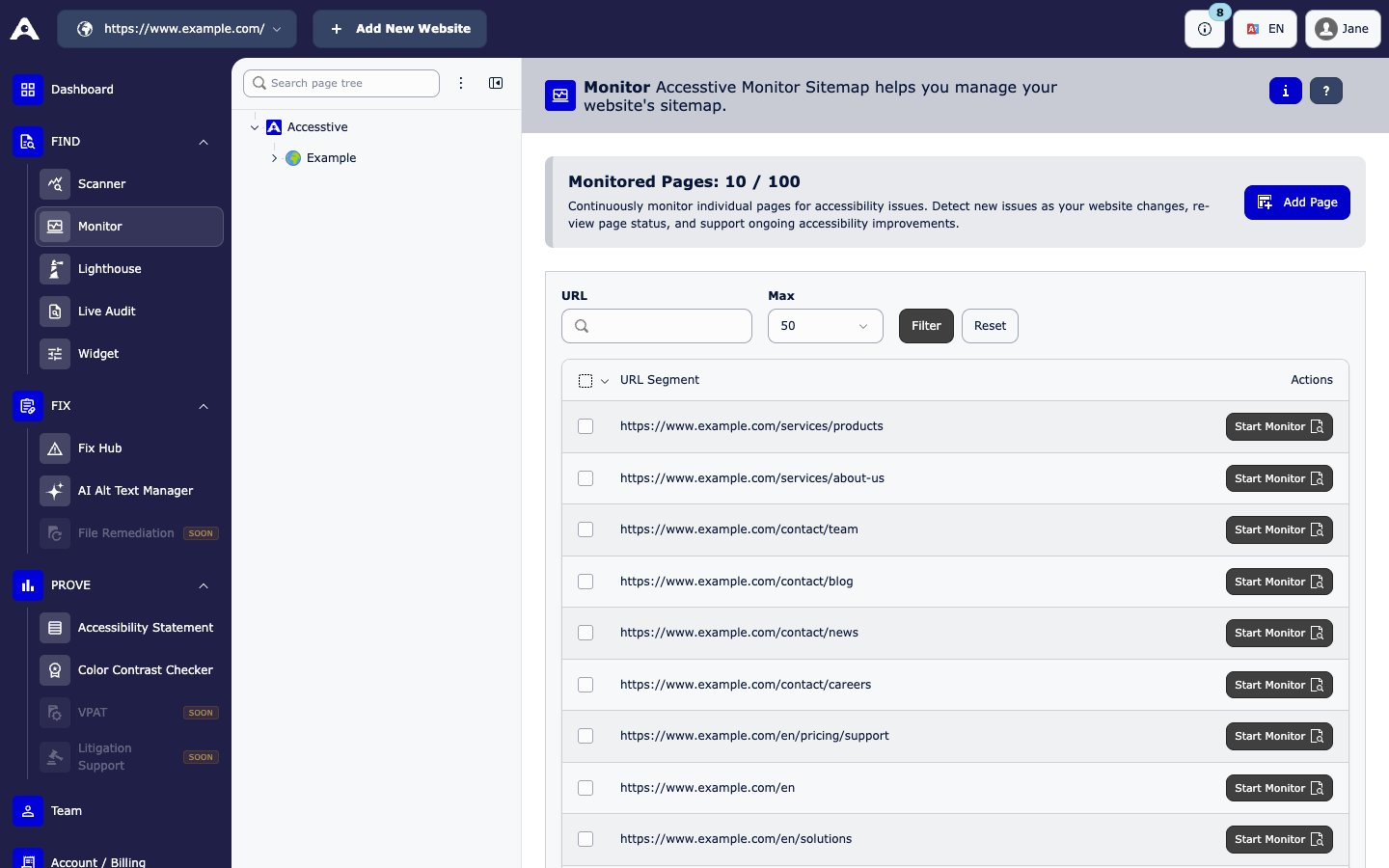
FIND → Monitor
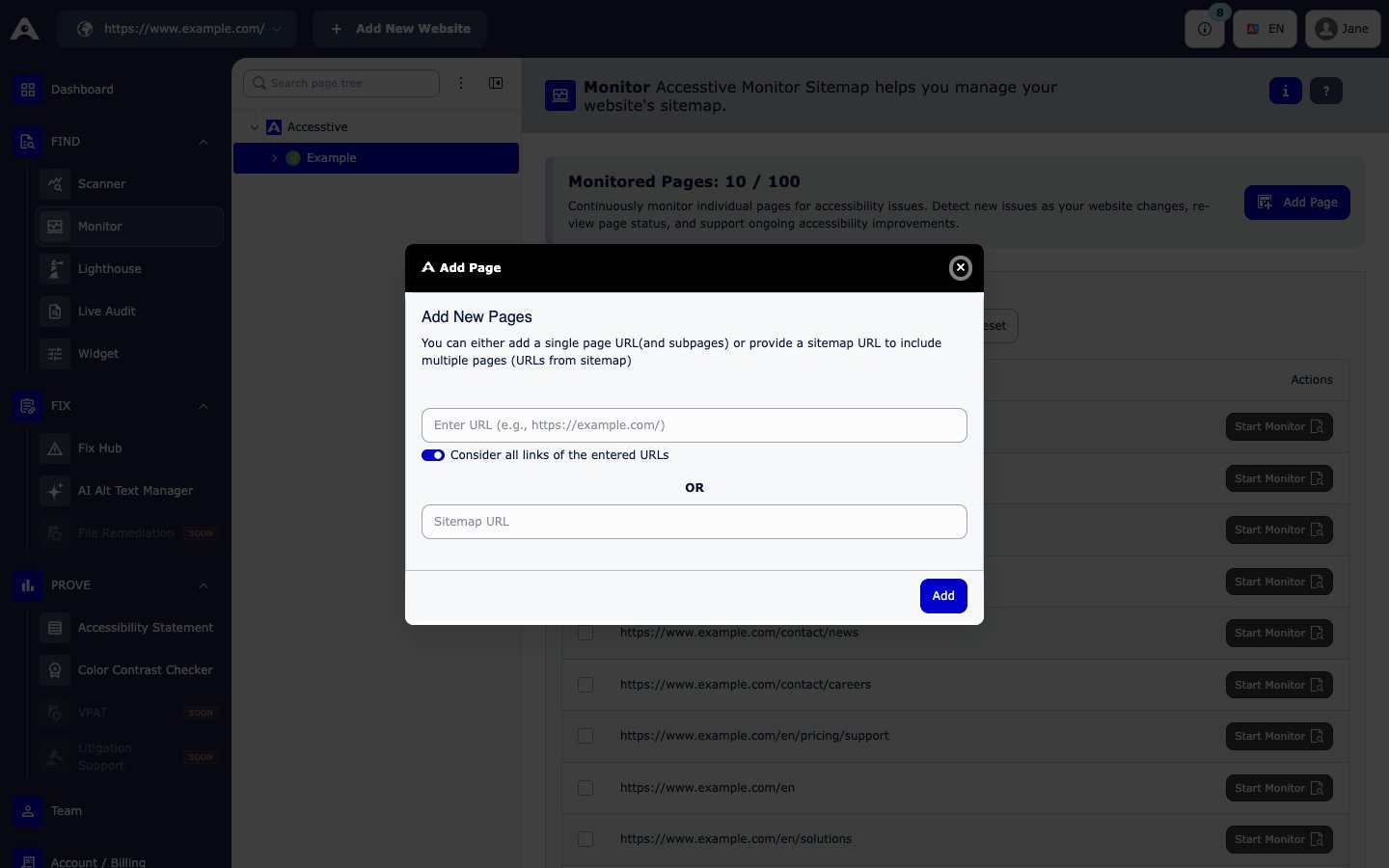
The Add New Pages dialog
How many pages you can monitor
If you reach your limit, the dashboard shows Upgrade required. See Plans and billing.
Common messages
What to do next
- Fix the issues in Fix Hub.
- Look at a page in context with Live Audit.
- Check performance and SEO too with Lighthouse.
Related
- Dashboard tour
- Product page: Monitor